ClicPDF Free download

Less hassle with everyday PDFs.

Made by someone who works in office admin and got tired of uploading documents to websites just to merge or shrink them. Now it's a right-click away, on your own computer.
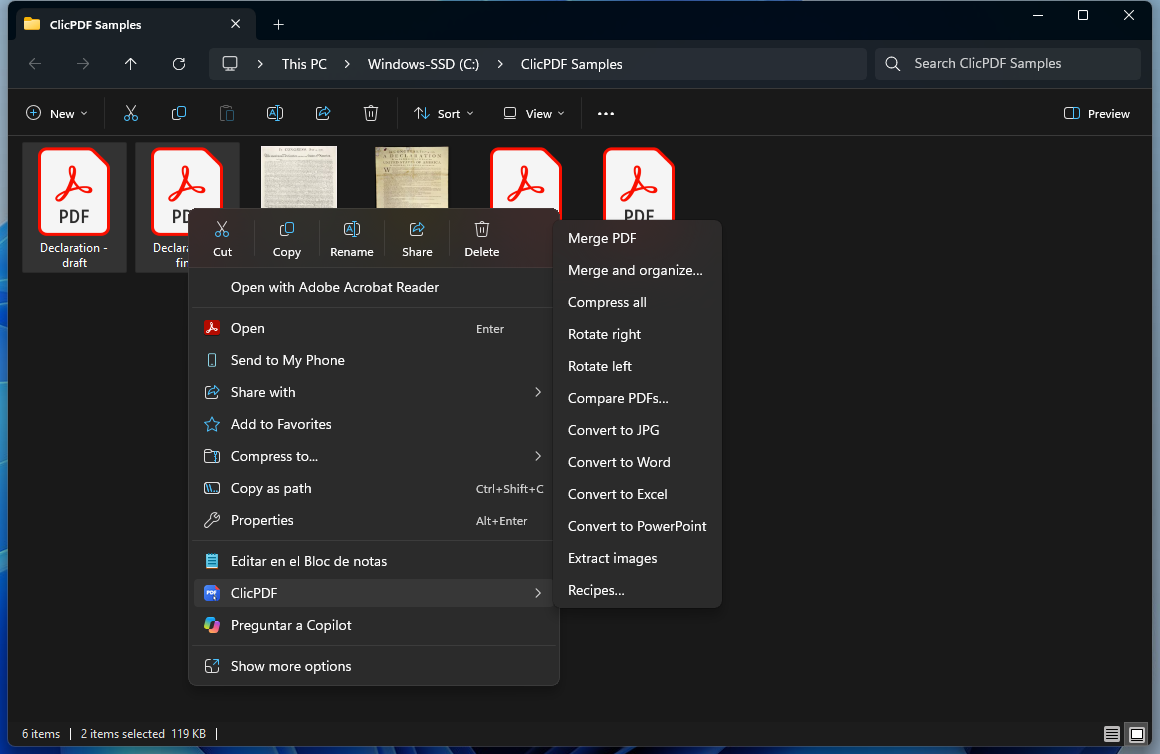
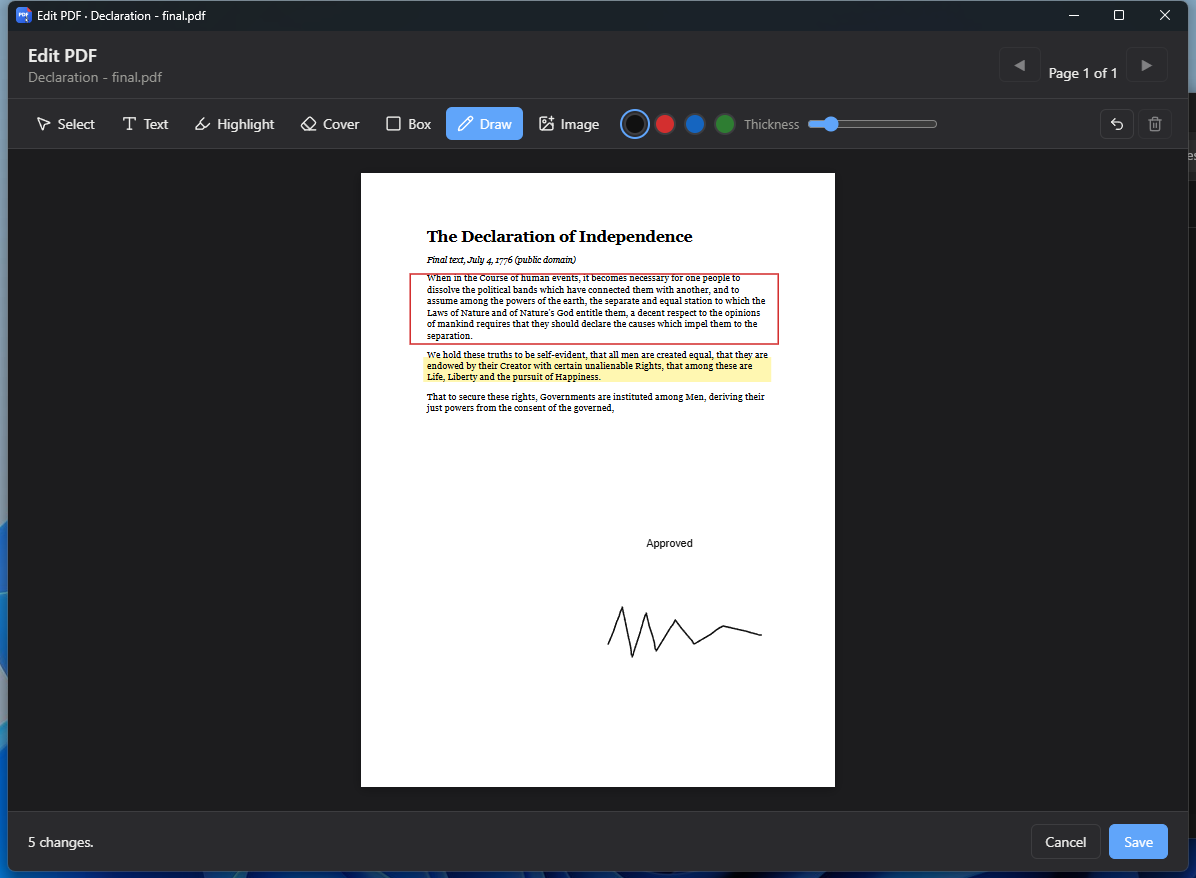
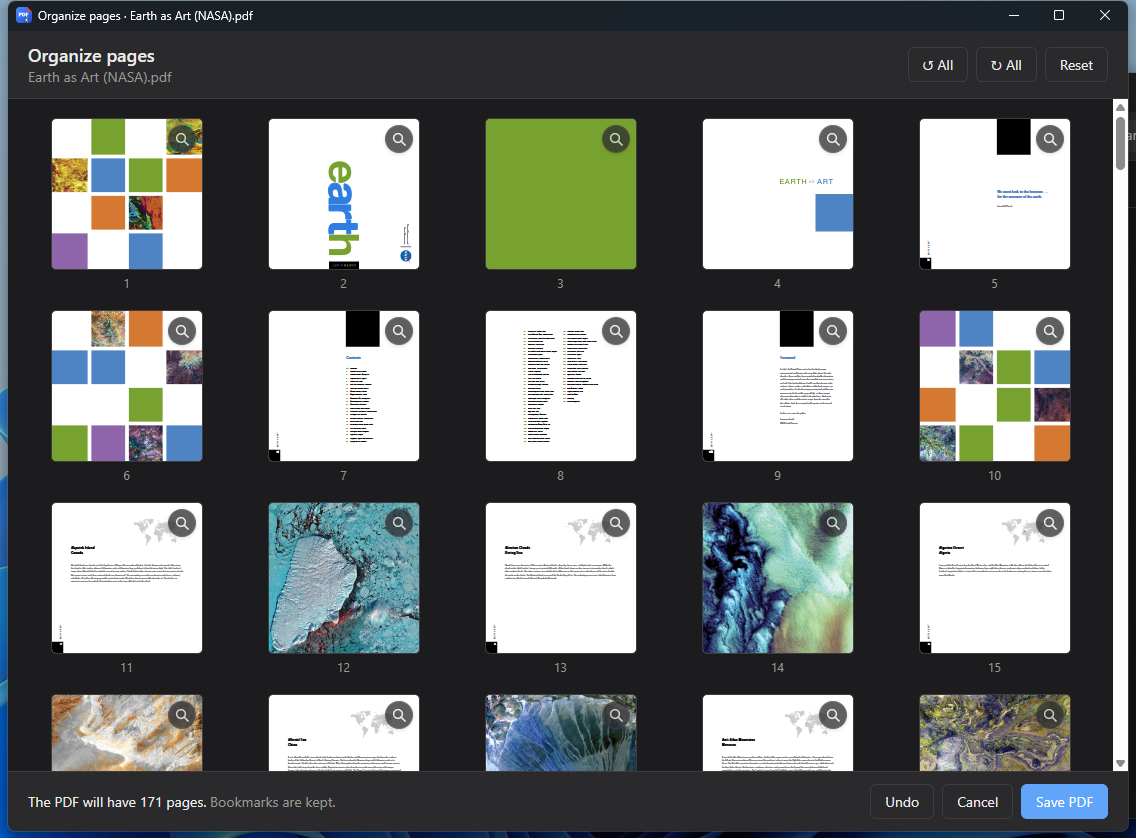
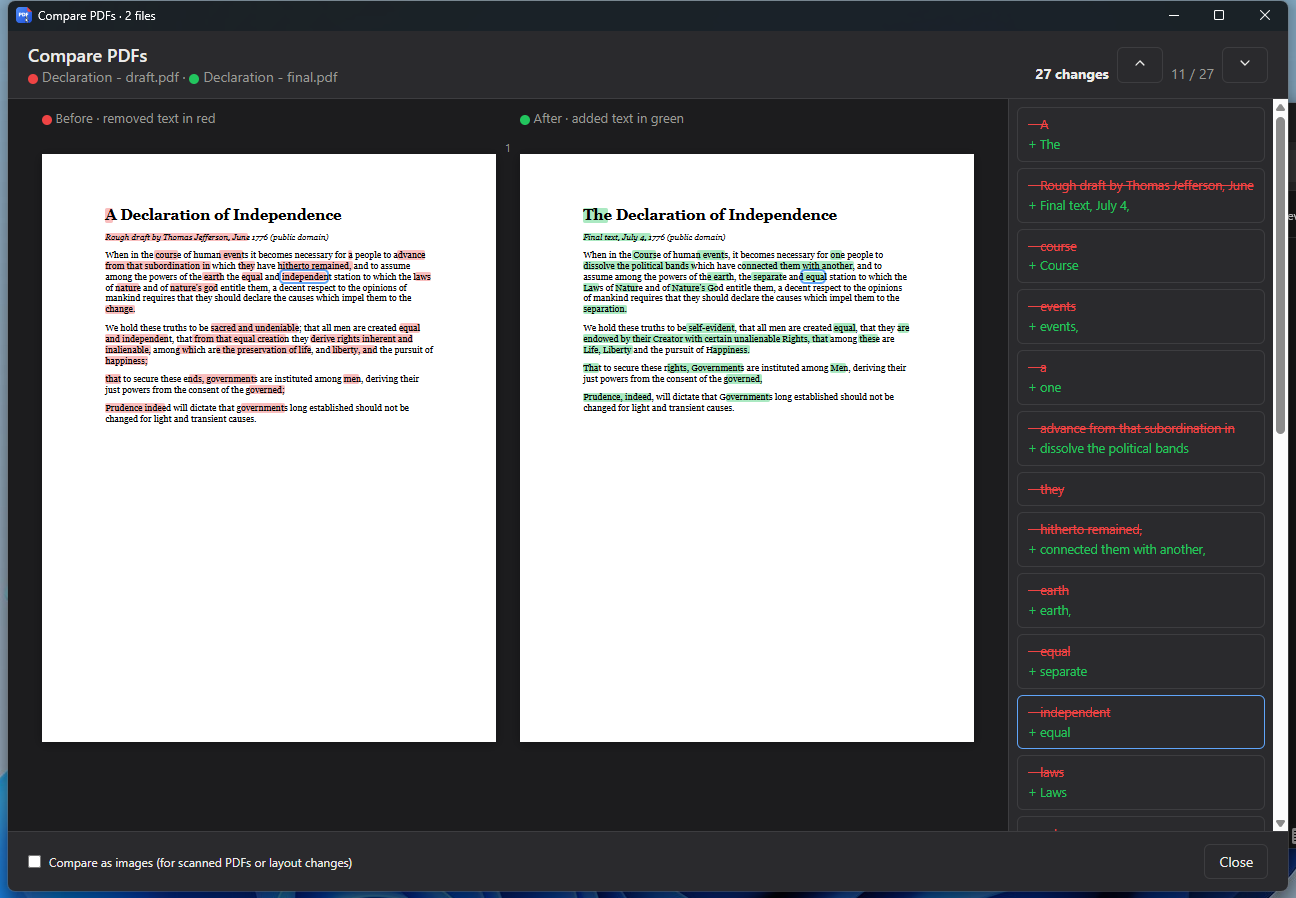
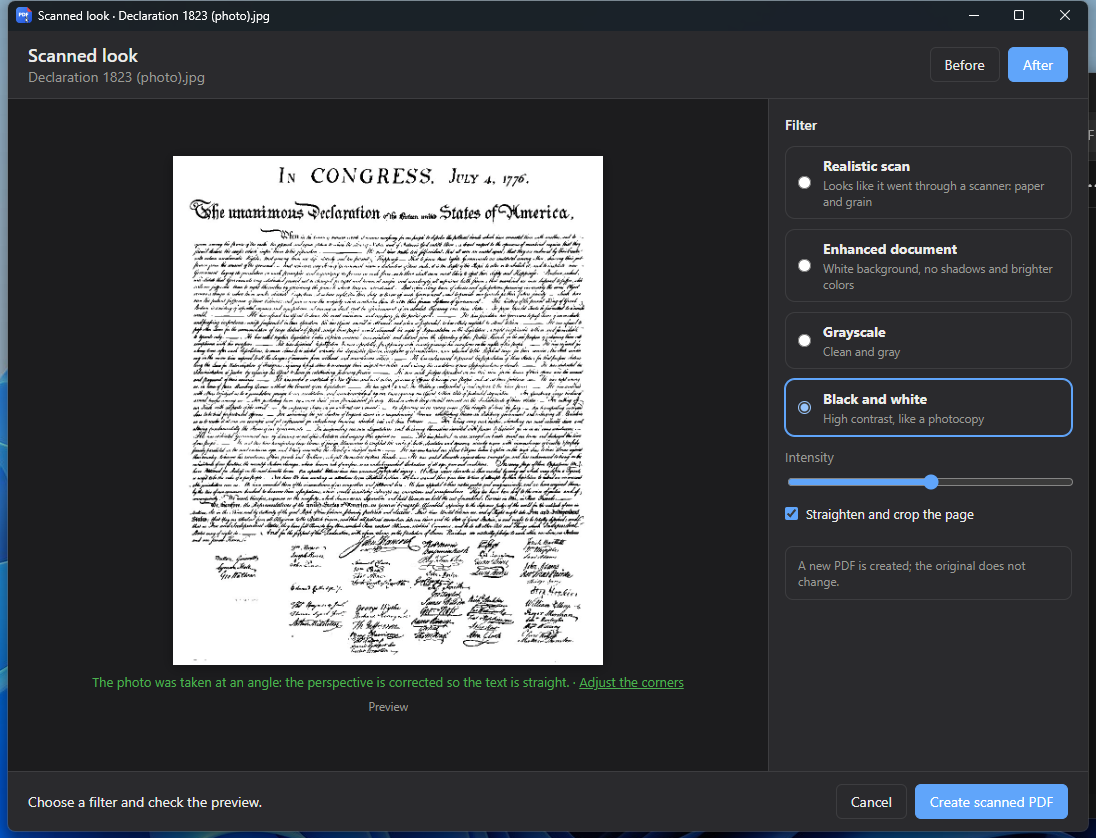
The ClicPDF menu in the Windows Explorer right-click menu PDF editor with text, highlight, box and signature Organize pages: rotate, delete and reorder Comparing two versions of a PDF A phone photo of a document turned into a scanned PDF
STEP 1Select one or more PDFs in File Explorer.
STEP 2Right-click → ClicPDF → the tool you need.
STEP 3The new file shows up next to it. The original stays untouched.
CARD 02EDIT

Fix and sign without the original Word file

Everything right on the page, with your mouse.

  • Type text on top
  • Highlight and cover details
  • Boxes, drawing and images
  • Drawn or image signature
Watch the video ↓
CARD 03ORGANIZE

Every page where it belongs

All pages as thumbnails, ready to sort.

  • Rotate the sideways one
  • Delete the extras
  • Drag to reorder
  • Extract or split
Watch the video ↓
CARD 04COMPARE

What changed between two versions

The draft and the final, side by side.

  • Removed text in red
  • Added text in green
  • The list of changes alongside
Watch the video ↓
CARD 05SCAN

A photo that looks scanned

For that phone photo of a document.

  • Straightens and cleans it up
  • Enhanced, black and white or realistic
  • Before and after, side by side
Watch the video ↓

Real screenshots of the app.

  1. Merge and organizeseveral PDFs into one; reorder, rotate and remove pages see ↓
  2. Delete, extract and splitsingle pages or ranges
  3. Compressin one click or choosing the quality see ↓
  4. Edittext, highlight, cover, boxes, drawing and images see ↓
  5. Signwith a drawn or image signature
  6. Compareremoved text in red, added text in green see ↓
  7. Page numbersin several font styles
  8. Make searchable (OCR)recognizes the text in scanned PDFs
  9. Scanned looka photo of a document looks scanned see ↓
  10. Convertto Word, Excel, PowerPoint or JPG, and back to PDF see ↓
  11. Extract imagesat their original quality
  12. Protectadd or remove a password
  13. Recipesseveral steps in a row, in one click see ↓

What it looks like, no tricks

Recordings of the app running on Windows, with sample files.

No. 01 — MERGE

Two PDFs, one file, nothing to open.

Select the files, pick “Merge PDFs” and a moment later the full document is in the same folder.

  • Keeps the order you choose
  • “Merge and organize…” lets you decide page by page
No. 02 — COMPRESS

Small enough for email.

A PDF full of photos ends up much lighter. It tells you how big it was and how big it is now.

  • One click, or choose the quality
  • Several files at once
No. 03 — ORGANIZE

Every page where it belongs.

See all pages as thumbnails. Rotate the one that came in sideways, delete the extra one and drag the rest into order.

  • Rotate, delete and reorder
  • Extract or split pages
No. 04 — EDIT AND SIGN

Fix a PDF without asking anyone for the Word file.

Type on top, highlight, cover a detail that shouldn't be seen, draw a box and sign with your mouse.

  • Text, highlight, cover and boxes
  • Freehand drawing and images
  • Drawn or image signature
No. 05 — COMPARE

What changed in this version?

Put the draft and the final side by side. Removed text shows in red, added text in green, with the list of changes alongside.

  • Great for contracts and documents that go back and forth
No. 06 — SCANNED LOOK

A phone photo that looks scanned.

Straightens and cleans up a photo of a document. Pick a style, compare before and after, and save the PDF.

  • Enhanced, black and white or realistic
  • Can also make an existing PDF look scanned
No. 07 — CONVERT

From PDF to Word, Excel or PowerPoint.

And the other way: images (iPhone HEIC too) and Office documents become PDFs.

  • Word, Excel, PowerPoint and JPG
  • Extract the images from a PDF
No. 08 — RECIPES

What you always do, in one click.

If every week you merge and compress the same reports, save it as a recipe and next time it's a single click.

  • Chain several steps
  • They show up in the same menu

Your documents never leave your computer.

Invoices, contracts, medical records, IDs: whatever goes through ClicPDF stays on your PC.

ON YOUR PC

Nothing is uploaded

Everything is processed on your computer. No waiting for uploads, no wondering who keeps a copy.

THE ORIGINAL

Never modified

The result is saved as a new file next to it. Made a mistake? Hit “Undo”.

OFFLINE

Works without internet

It only goes online to check for updates, which install themselves (and, with the monthly Pro plan, to check the subscription).

OPEN ABOUT IT

Stats you can turn off

The app sends anonymous data about which tools are used, never your files. Turn it off in Settings.

Free. Really.

No ads, no watermarks, no file limits. A Pro version with new features will come later, but what's free today stays free.

TODAY

ClicPDF

Free

  • Every tool in the table above
  • No ads, no watermarks
  • Automatic updates
  • In English and Spanish
COMING SOON LATER ON

ClicPDF Pro

US$29 lifetime · or US$4.99/month

  • New extras for people who handle PDFs every day
  • Lifetime: pay once, founder price until version 1.0
  • Monthly: cancel anytime
  • 14-day refund, no questions asked

Download ClicPDF

Free, under 6 MB, and it installs in a minute.

DOWNLOAD CARDWINDOWS
Program
ClicPDF
Version
0.2.4
Released
November 12, 2026
Size
5.6 MB
System
Windows 10 and 11
Download for WindowsInstaller · 5.6 MB
x64

Need the other one? Version for ARM (Snapdragon)

Open it on your computer to install it. You can send yourself the link:

INSTALL IN 3 STEPS

  1. Open the installer

    Double-click the downloaded file and follow the steps. It takes less than a minute.

  2. If Windows warns you, continue

    You may see “Windows protected your PC”, because the app doesn't have a paid Microsoft certificate yet. Click More info, then Run anyway.

  3. Right-click a PDF

    That's it: you'll see ClicPDF in the menu. On Windows 11 it's in the modern menu, no “Show more options” needed.

MacComing soon.
What's new ↗Release history.
OfficeOnly for converting to Word or Excel, or Office to PDF.

Questions

Is it really free?

Yes. All current tools are free and will stay that way, with no ads or watermarks. The future Pro version will only add new features.

Are my files uploaded anywhere?

No. Everything is processed on your computer. The app only goes online to check for updates and to send anonymous usage stats (never your documents), which you can turn off in Settings. With the monthly Pro plan it also checks your subscription. More in the privacy policy.

Does it change my original files?

Never. The result is saved as a new file next to the original. And if something didn't come out the way you wanted, you can undo it.

Windows says “Windows protected your PC”. Is it safe?

That warning appears for apps that don't have a paid Microsoft certificate yet. Click “More info”, then “Run anyway”. Always download it from this page.

Do I need Office installed?

Only to convert regular PDFs to Word or Excel, or Office documents to PDF. Everything else works without Office.

Is there a Mac version?

It's on the way. For now ClicPDF runs on Windows 10 and 11, on regular PCs and on ARM PCs.

How do I uninstall it?

Like any program: Settings → Apps → ClicPDF → Uninstall. The right-click menu goes away with it.